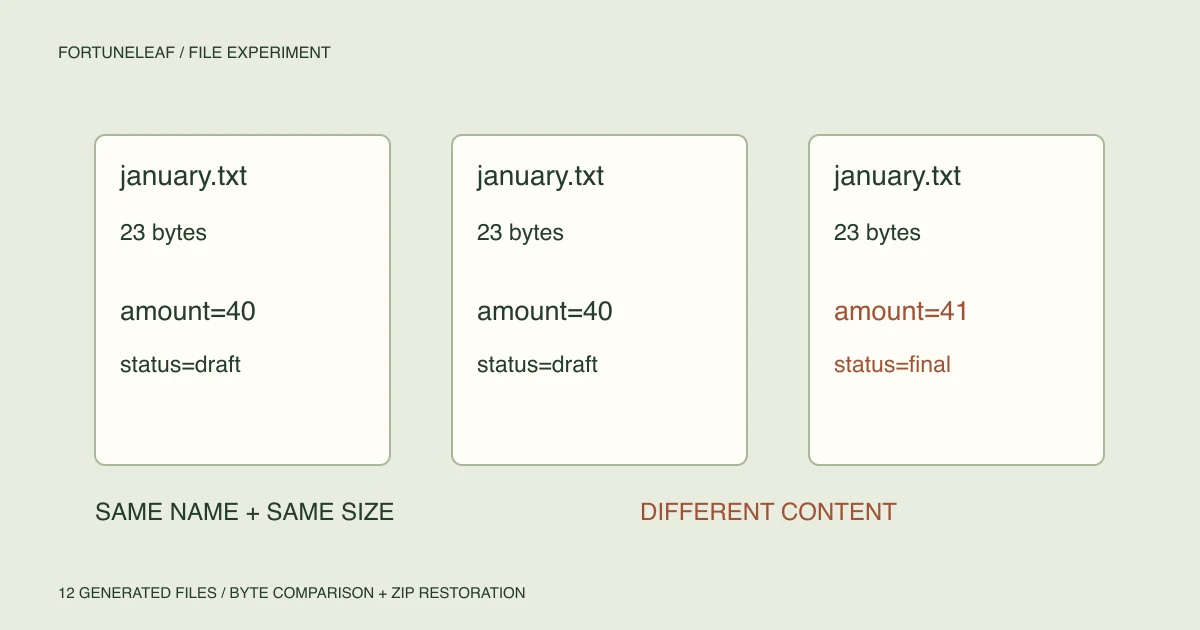
Three files are named january.txt. Each is 23 bytes long. Two contain the same draft; the third changes the amount and status. Keeping one because the names and sizes match would lose a distinct version. Conversely, notes.txt and notes-copy.txt have different names but exactly the same five bytes.
We created 12 small files to make these cases inspectable, compared their contents, then restored them from a ZIP into a separate temporary folder. All 12 restored contents matched. A second, deliberately damaged restoration exposed one missing file and one changed file. These are actual executions on generated samples, not a claim about anyone's private documents or a commercial backup service.
What we put in the folder
The sample ZIP includes draft and final reports, a renamed copy, two equal-length price records, two newline styles, two Unicode representations and an empty file. The manifest CSV lists every relative path, byte count and SHA-256 digest. None of the filenames or contents comes from a user's computer.
There are 12 paths but 10 distinct byte sequences. That does not mean two files should be deleted: the same content may be required in two project locations. Our question is whether the stored contents match, not whether a file has a business purpose or can safely be removed.
| Comparison | Bytes in the two files | Identical bytes? | What the shortcut misses |
|---|---|---|---|
| reports/january.txt and reports-copy/january.txt | 23 / 23 | Yes | This pair really contains the same draft |
| reports/january.txt and reports-final/january.txt | 23 / 23 | No | Same filename and size still hide a different value and status |
| reports/notes.txt and archive/notes-copy.txt | 5 / 5 | Yes | Renaming did not change these contents |
| case/same-size-a.txt and case/same-size-b.txt | 9 / 9 | No | price=40 and price=41 occupy equal space |
| line/lf.txt and line/crlf.txt | 10 / 11 | No | The line-ending bytes differ |
| unicode/nfc.txt and unicode/nfd.txt | 11 / 20 | No | The same Korean text uses different Unicode sequences |
A fingerprint answers a narrower question than a filename
The script reads each sample in binary mode, computes its SHA-256 digest and also compares the bytes directly for each pair. The Python hashlib documentation describes digest generation. In these six comparisons, the digest and byte-equality results agree. We do not treat a fingerprint as a test of a file's meaning, ownership, modification history or safety to delete.
Equal size is only a preliminary filter. The two price files each occupy nine bytes, including the final newline. A size-only rule cannot see which price is stored. Opening them as text supplies that interpretation; comparing the bytes supplies the exact-content check.
Different bytes can still display the same text
The LF file ends with one newline byte; the CRLF file ends with two. Neither count proves that one document is a newer version. A program may care about that distinction even if a text editor displays both as one line.
For the Korean pair, the script constructs one UTF-8 file from code points U+BA54, U+BAA8, U+003D and U+AC00 followed by a newline, and another after NFD normalization. The Python Unicode documentation explains normalization forms. Their lengths are 11 and 20 bytes, including the newline. This is a content-encoding example: we did not test how a particular filesystem normalizes Korean filenames.
Normalizing text before comparison changes the question. It may help compare text, but it no longer verifies that the original stored bytes survived unchanged. We therefore preserve the original samples for the restoration check.
The restore test that passed, and the one we made fail
We generated the ZIP from the same fixed samples, extracted it into a new temporary folder and compared every path, size and digest with the original manifest. Direct byte comparison provided a second check. The first restoration had 12 matching files, no missing or unexpected paths and no changed contents.
Then we copied that restored folder, removed zero/empty.txt and changed the final report's amount from 41 to 00. The altered report stayed 23 bytes long. This second check returned 10 matches, one missing path and one content mismatch. A file-count check could see the missing item; it would not explain the same-size edit. A size check could not detect that edit either.
The empty file is intentional. Zero bytes can be a valid placeholder, so our manifest expects it. The experiment checks completeness against a known list rather than assuming small or empty files are disposable.
Reproduce the result without scanning your folders
Download the Python script and, if Python 3 is already available, run python3 file-check.py from the folder where you saved it. It has no input-path argument. It creates only its own sample directory, prints the result as JSON and cleans up its temporary files. Python's TemporaryDirectory documentation describes that cleanup mechanism. No network connection or extra package is needed by the script.
Compare the output with our complete result file. The recorded Python version can differ on another computer. The sample paths, byte counts, pair comparisons and restoration outcomes should agree. The ZIP and manifest let you inspect the inputs without running the script.
What this means for a real sorting decision
First preserve the original location and decide which project or person needs each version. Use name and size to find candidates, then inspect the content and compare the relevant files. Make any deletion a separate decision after checking dependencies and a recoverable copy. This experiment does not run a deduplication tool on your documents.
A successful round trip within one temporary workspace is not evidence that a backup survives disk failure, ransomware or account loss. We did not test permissions, timestamps, symlinks, application-specific packages, cloud history or a separate physical device. For a real backup, restoration must answer the recovery question you actually have. Here, the evidence supports one narrower conclusion: in these samples, names and sizes were insufficient, while the path-and-content check caught both a deliberate omission and a same-size edit.